Day 5 Task - Advanced Linux Shell Scripting for DevOps Engineers with User management📃🌈

TABLE OF CONTENTS
Introduction📚
Creating Dynamic Directories📕
Automated Backup Script🕐
Automating the Backup Script with Cron💻
User management in linux👨🏼🤝👨🏻
Creating and Displaying Usernames👀
Conclusion🍁
Introduction📚
Welcome to Day 5 of the #90daysofdevopschallange!🌈 Today we are dealing with the topics like Advanced Linux shell scripting and user management in Linux. also, we are going through the practicals like how to automate the script in Linux to automate DevOps tasks.🕐 creating multiple users and displaying their usernames. let's dive into the world of shell scripting.✳
Creating Dynamic Directories📒
Using Shell Script using either Loops or command with start day and end day variables using arguments.
#!/bin/bash
echo "creating multiple directories at once "
for (( i = $2; i < $3; i++ ))
do
   mkdir "$1$i"
done
Now it will create multiple directories at once.
$1 is directory_name(day)
$2 is start_directory(1)
$3 is end_directory(90)
The output is,

Automated Backup Script📃
Let's create Backup Script automated by using some interesting scripts. we create copies of data that can be recovered in case of primary data failure. so we can take a backup of the data.
#!/bin/bash

# Define source and target directories
src_dir="/root/scripts"
trg_dir="/root/backups"

# Get the current timestamp
curr_time_stamp=$(date "+%Y-%m-%d-%H-%M-%S")

# Create backup file name with timestamp
backup_file_name="$trg_dir/backup-$curr_time_stamp.tgz"

# Inform the user about the backup process
echo "Taking backup of '$src_dir' on $curr_time_stamp"

# Create the backup archive using tar
tar -czf "$backup_file_name" "$src_dir"

# Inform the user when the backup is complete
echo "Backup Completed! The backup file is saved as 'backup-$curr_time_stamp.tgz' in '$trg_dir'"
Run the above script and it will create the automated backup.

Automating the Backup Script with Cron🕐
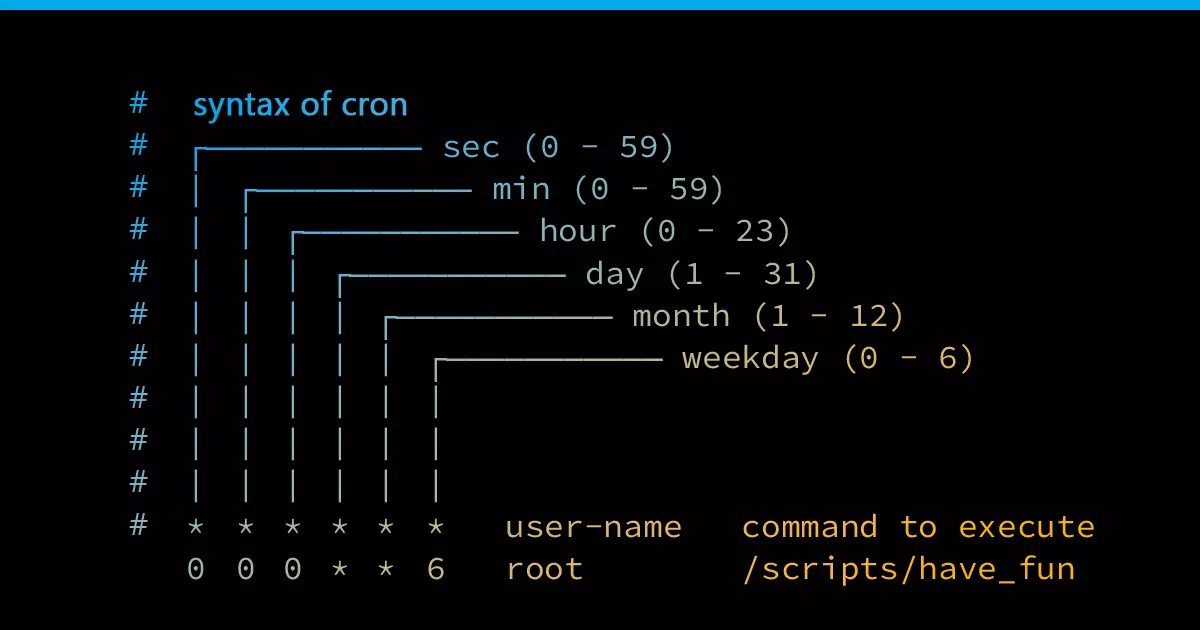
Cron is a time-based job scheduler in Unix-based operating systems, which enables users to schedule and automate repetitive tasks, such as backups, system maintenance, and data processing.🌈 A cron job is a command or script scheduled to run at specified intervals, such as every minute, hour, day, week, or month.🕐
A cron job consists of two parts: a schedule, which defines when the job should run, and a command, which specifies the action to be taken. The cron daemon, which is a background process running on the system, reads the crontab files, which contain the schedule and command for each job, and executes them accordingly.📕
User Management in Linux👨🏼🤝👨🏻
A user is an entity, in a Linux operating system, that can manipulate files and perform several other operations.👨🏻 Each user is assigned an ID that is unique for each user in the operating system. In this post, we will learn about users and commands which are used to get information about the users. After installation of the operating system, the ID 0 is assigned to the root user and the IDs 1 to 999 (both inclusive) are assigned to the system users and hence the ids for local user begins from 1000 onwards.✳
✳To create user in linux,
sudo useradd username
✳To delete the user in linux
sudo userdel username
✳Create Password for User
passwd username
Creating and Displaying Usernames 👀
For creating user in linux we used following commands,
sudo useradd user1
sudo useradd user2
For displaying the usernames use command,
sudo /etc/passwd
Conclusion🌈
In this blog, we learned about how to automate daily work tasks. and efficiently use shell scripts for automating the task and Adding permission to users . schedule job using Crontab.
Explore exciting opportunities to learn and grow in DevOps. Stay connected with me for more Blogs!
Thank you for Reading🙏 Keep learning and Keep Growing!


